
AI Shichi-Go-San Photo
Create a Shichi-Go-San themed portrait from a child’s photo. Choose a shrine garden, kimono studio or autumn setting, then review and download.
What this tool creates
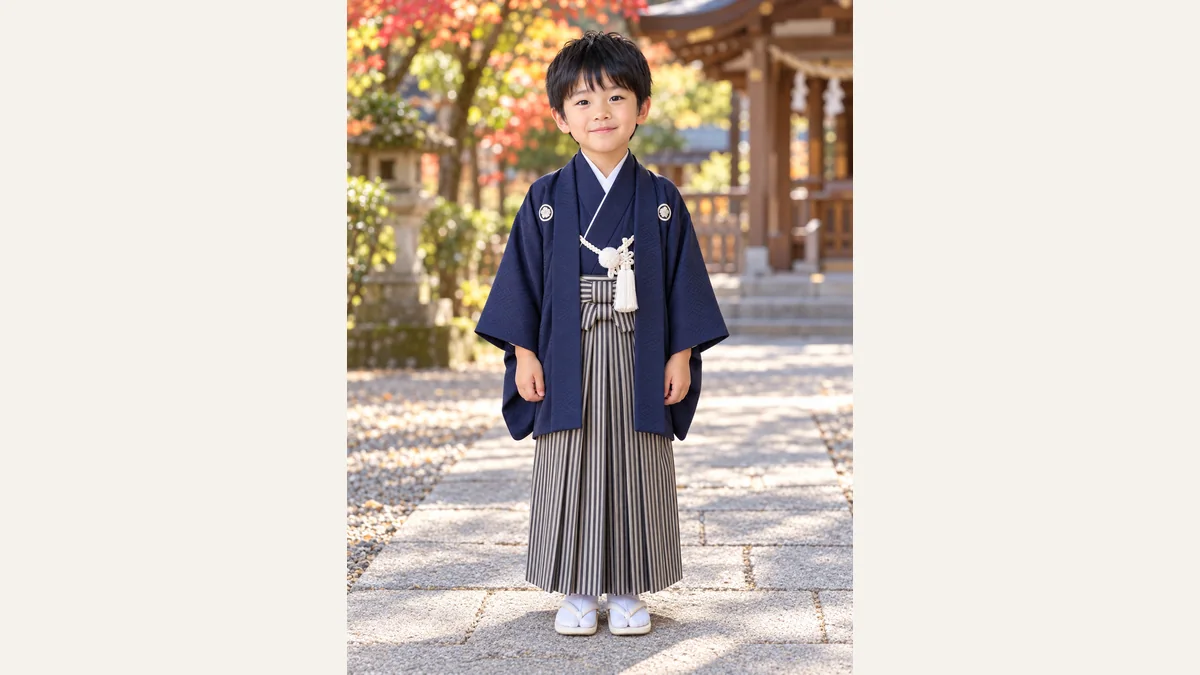
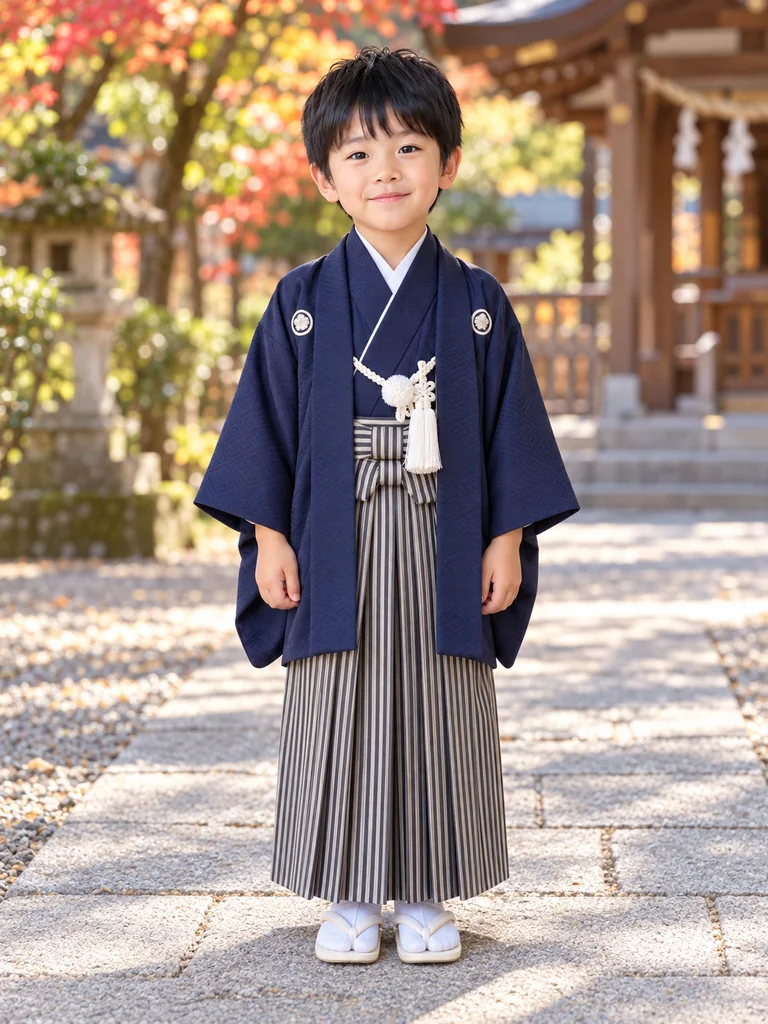
GPT Image 2.5 creates a Shichi-Go-San themed commemorative portrait from a child’s everyday photo. It is useful for exploring a kimono look or adding a keepsake when a photo session was missed. An AI scene is not a photograph of an actual shrine visit.
Choose a useful reference photo
Save an image for a family album or a supplementary keepsake. Check the child’s face, hands, garment layers and closure before printing. For exact family clothing, customs or accessories, a real supervised photo session remains a different service.
One clear subject
Choose a recent photo of one child with the face visible. A full or half-body view gives more context than a tightly cropped face.
Visible details
Keep the child’s natural age and proportions clear. Avoid heavy makeup filters or a photo where clothing and hands are mostly hidden.
A photo you may use
Use a photo you have permission to upload, with a parent or guardian involved. Keep the original separately.
How to create your image
Upload a photo
Upload one photo with an unobstructed subject. A sharp original gives the model more detail than a screenshot or a heavily filtered image.
Choose a scene
Choose one of nine visual templates. Preview the scene, then set the available output ratio and size. The tool supplies the scene keywords automatically.
Generate and review
Check the displayed credit cost before submitting. When generation finishes, inspect the face or subject details, then download a result you want to keep.
Choose your scene
Shrine garden
A quiet Japanese garden and stone path with soft autumn light, keeping the child as the focal point.
Kimono studio
An ivory studio and simple folding screen, giving space to inspect the child-sized kimono layers.
Autumn portrait
Muted maple foliage and warm afternoon light for a seasonal commemorative portrait.
Review, download and use your image
AI demonstration with a fictional subject. Inspect details against your own original before using a result.
Look closely
Compare the result with your source. Look for changed features, extra fingers or paws, distorted clothing and inconsistent edges before sharing.
Keep room for a crop
Leave some space around the head and body. A square social crop and a portrait frame can cut different parts of the image; review the intended crop before printing.
Check the actual file
The downloaded pixel dimensions determine usable print size. Ask your print shop about its requirements; an AI image or a DPI label alone does not guarantee a sharp large print.
Questions before you create
Related AI tools
AI ID Photo
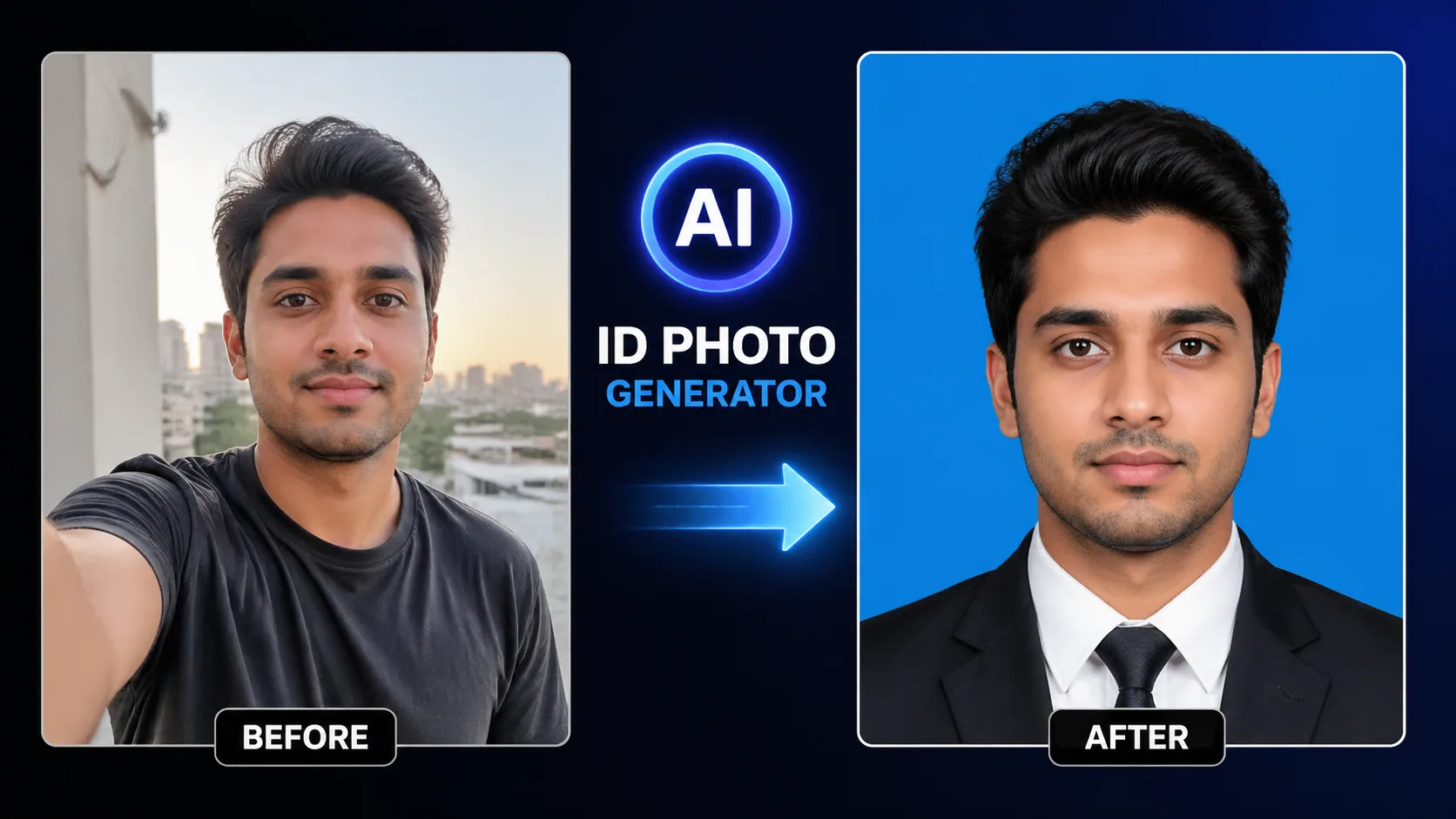
Professional ID photo creation with automatic background change and skin retouching.
3D Cartoon Avatar
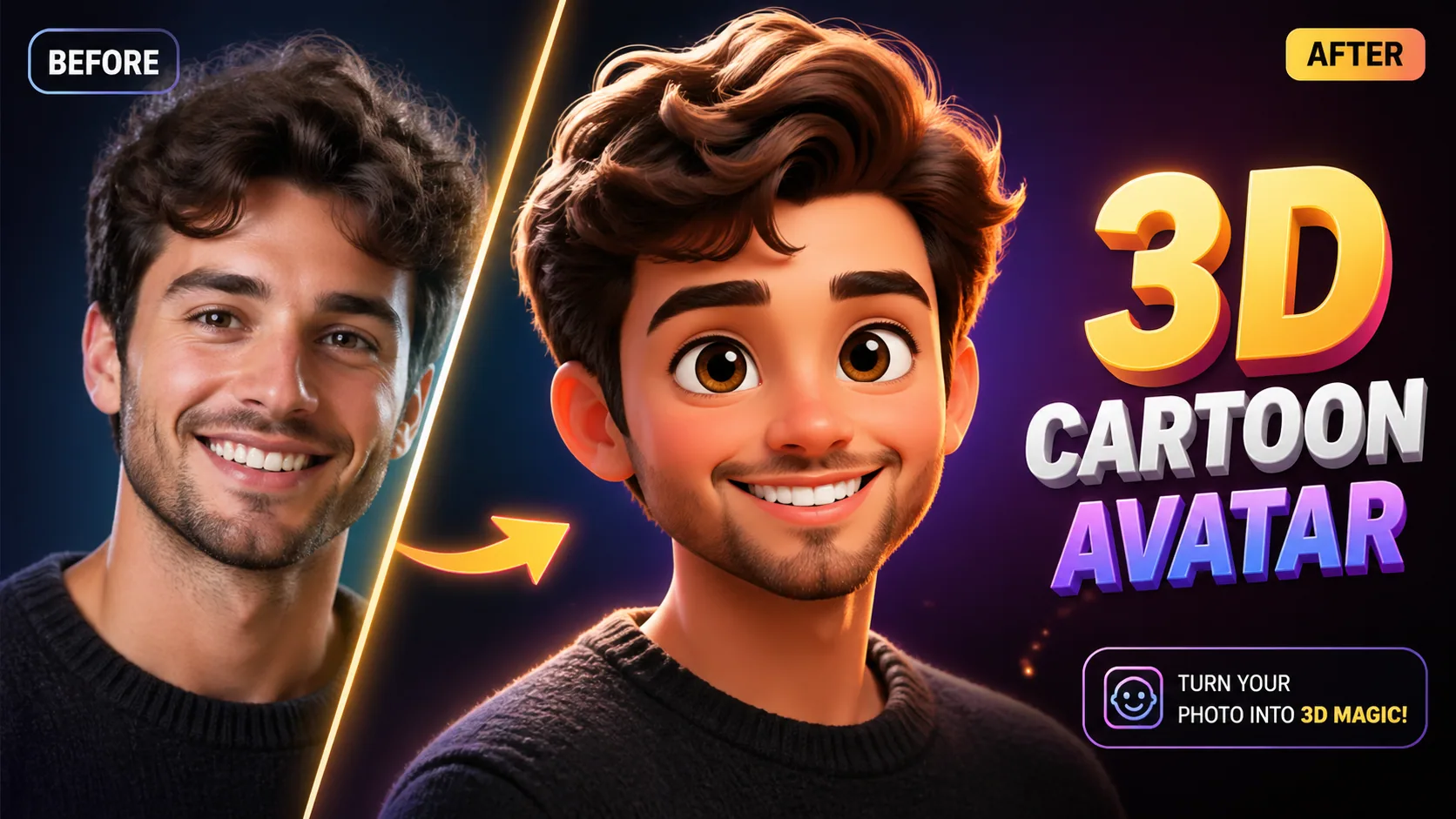
Transform photos into Pixar/Disney-style 3D characters with advanced AI reconstruction.
Studio Portrait
Turn selfies into professional studio-quality headshots for LinkedIn and business profiles.
Portrait Filter
Apply 50+ AI art style filters to portraits — oil painting, watercolor, anime, pop art and more.
AI Models You May Like
 Image
ImageFireRed Image Edit
Open-source instruction-driven AI image editing model by Xiaohongshu FireRed team — 10 editing capabilities covering ...
 ImageNEW
GPT Image 2
Supports up to 16 reference images and 3000-character prompts for higher-consistency image generation, brand assets, ...
 Image
ImageNano Banana Pro
Professional AI Image Generator with 4K Ultra-HD Output and Perfect Prompt Understanding
AI Shichi-Go-San Photo
Create a Shichi-Go-San themed portrait from a child’s photo. Choose a shrine garden, kimono studio or autumn setting, then review and download.
Create image