
Seedance 2.5 for reference-led video scenes
Give a short scene a clear direction. Select Seedance 2.5 in GPT Image 2.5, describe the action, and choose text-only creation, reference materials or a first-frame setup before adjusting the output.
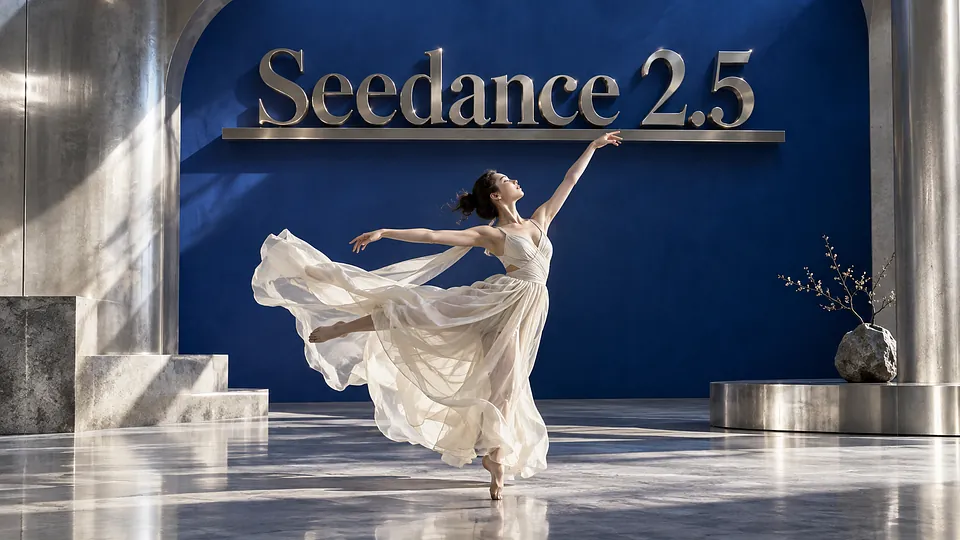
Seedance 2.5 for reference-led video scenes
Seedance 2.5 is a ByteDance video model available in the GPT Image 2.5 video generator. Start with a written scene, use reference images, video and audio to guide it, or animate a first frame with an optional ending frame. These are separate ways to prepare a request. For a product reveal, describe what moves and how the camera follows; for a character scene, explain the action and the role of each reference. Select the duration, aspect ratio, resolution and sound controls shown for your chosen mode, then review the finished clip before using it.
Ways to direct your scene
Prepare the inputs before choosing the output.
Core Features Overview
A written scene as the starting point
For text-to-video, put the main action first and add the setting, lighting and camera movement that matter. A focused scene is easier to revise than a list of unrelated events; keep dialogue or sound instructions explicit when using sound.
References with a purpose
Reference mode accepts up to 30 images, 1 video clip and 1 audio clip within the upload limits. State which material supplies appearance, movement or sound. Choose relevant inputs rather than filling every slot, and use only materials you have permission to use.
A defined opening and ending
Frame mode needs a first image; a last image can define the intended endpoint. Do not combine this mode with reference images, video or audio. Its aspect ratio is adaptive, so prepare the frames with the composition you want to carry into the clip.
Duration, format and sound
GPT Image 2.5 offers duration choices through 30 seconds and 480p, 720p or 1080p output for Seedance 2.5. Use a vertical composition for a portrait placement or a wide frame for landscape scenes where available. Check sound, framing and motion in the result before publishing.
Seedance 2.5 questions
Seedance 2.5 for reference-led video scenes FAQ
Explore More AI Video Models


Open Seedance 2.5 in the video generator


 +1k
+1k