
Shape a video brief with Wan 3.0 Video Prime
Start with a scene you can describe, a frame you want to animate or references that establish the direction. In the GPT Image 2.5 video generator, choose Wan 3.0 Video Prime and match the input mode to your materials before setting up the clip.
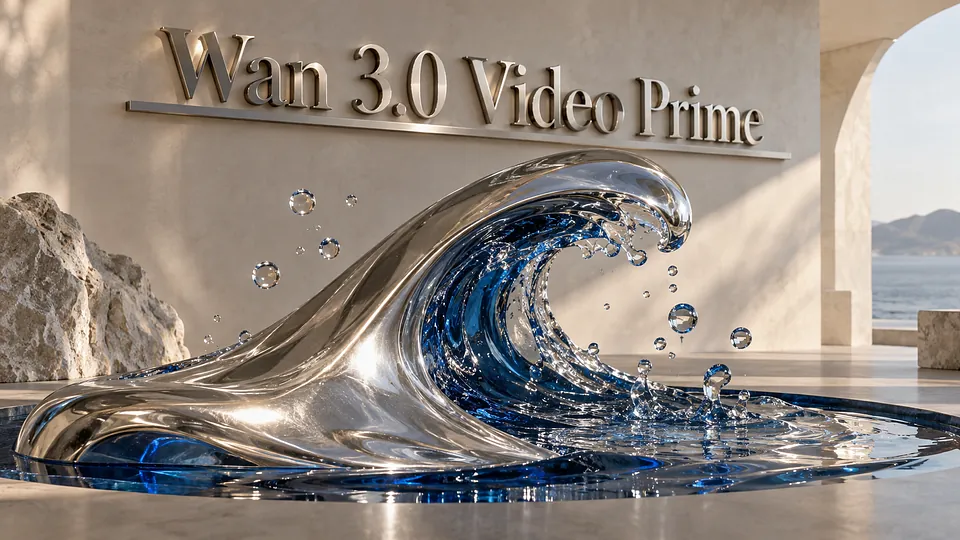
Prepare your Prime brief
Wan 3.0 Video Prime is a separate selection from Wan 3.0 Video in GPT Image 2.5. Use this page to prepare a focused brief: name the subject, describe one main action and explain the camera movement. Prime offers text, image and reference workflows; the controls available in the generator determine how your materials are used.
Four choices for a clearer clip
Match the input to your idea
Core Features Overview
A scene written for motion
For text-to-video, establish the subject and setting first, then add action, camera direction and the intended ending. A short product reveal or a single atmospheric scene is easier to evaluate when the prompt has one clear progression.
Frames with a purpose
In frame mode, provide the first frame; the last frame is optional and must accompany that opening image. Describe the intended movement, including the transition if you add an ending frame. Check framing and subject placement before uploading, so the requested motion fits the supplied composition.
References that guide the brief
Select the reference workflow when existing material should guide the clip. Explain which reference establishes appearance, movement or sound. Keep instructions consistent across the materials; adding more files does not by itself make the desired result clearer.
Settings before submission
GPT Image 2.5 offers 480p, 720p and 1080p selections, with durations from 5 to 30 seconds in five-second steps. Choose an aspect ratio for the destination and review the sound setting. After completion, check the opening, motion and ending before downloading.
Questions before you start
Shape a video brief with Wan 3.0 Video Prime FAQ
Explore More AI Video Models


Plan a Wan 3.0 Video Prime clip






 +1k
+1k