
Shape a short video with Seedance 2 Mini
Start with an idea, a still image or a reference clip in the GPT Image 2.5 video generator. Select Seedance 2 Mini explicitly, describe the action and camera movement, then choose the inputs that fit your scene. This page explains the controls available for Mini without borrowing promises from other Seedance variants.
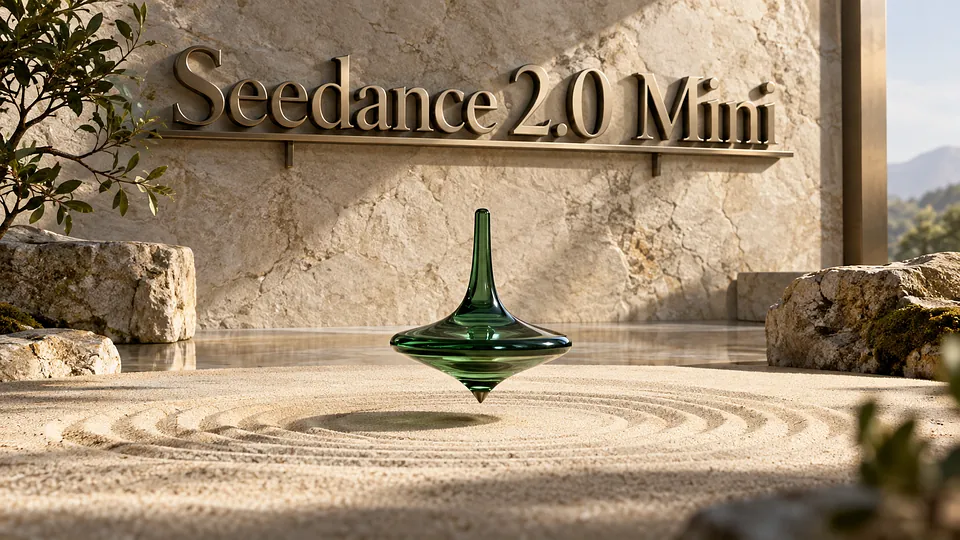
About this workflow
For a product reveal, a character gesture or a short transition, write one clear shot before adding references. Name the subject, setting and movement in that order. GPT Image 2.5 offers text-to-video, image-to-video and video-to-video for Seedance 2 Mini; the chosen mode determines which upload controls you use. Check the selected model again when switching between workflows.
Plan the shot before generating
A practical guide to inputs, framing and sound for this specific variant.
Core Features Overview
Choose the starting material
For text input, describe a single camera setup and a visible action. With image or video input, explain which appearance should remain recognizable and which motion you want changed. Avoid filling the prompt with unrelated scenes; a short clip benefits from a clear beginning and end.
Fit the clip to its destination
Available aspect ratios include 16:9, 4:3, 1:1, 3:4, 9:16 and 21:9, plus adaptive. Match the ratio to the placement you have in mind. Neither a resolution choice nor the Mini name guarantees a particular visual result or processing time.
Prepare references deliberately
Image uploads have a 30 MB limit, video files 50 MB and audio files 15 MB. Images accept JPEG, PNG, WebP and GIF; videos accept MP4, MOV and MKV; audio accepts MP3 and WAV. Recheck the preview and upload status after changing input modes.
Decide how sound should work
Mini does not request a separate returned last-frame image. If you need a still from the finished video, plan a separate review or editing step. Listen for unintended audio and check the opening and closing frames before using the result in a larger sequence.
Questions about Mini
Shape a short video with Seedance 2 Mini FAQ
Explore More AI Video Models


Open Seedance 2 Mini
 +1k
+1k