
Build a short scene with Gemini Omni 1.1 Flash
Start with a scene description or bring visual material into the GPT Image 2.5 video generator. Select Gemini Omni 1.1 Flash, choose the input mode that matches your material, and describe what should move. Keep the brief focused on one shot so you can judge the result against a clear intention.
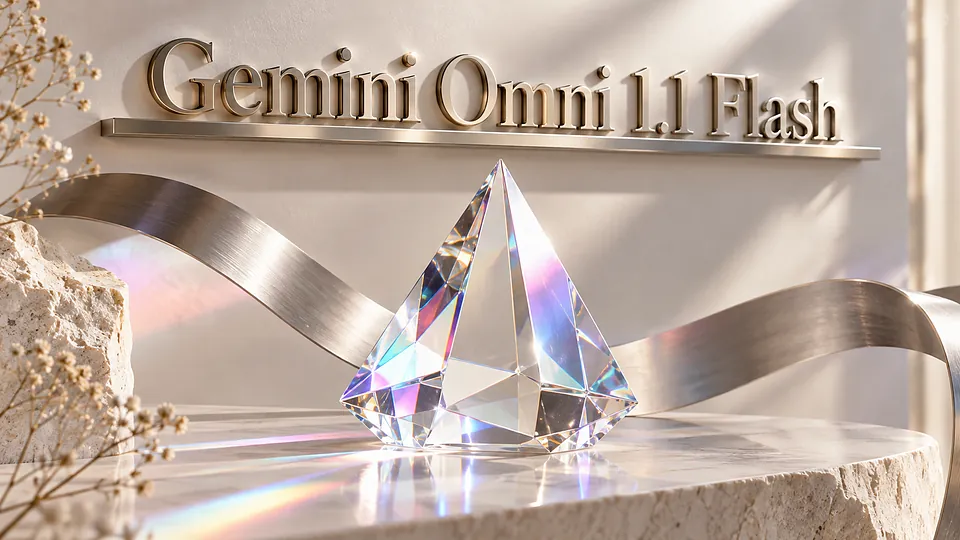
From a scene brief to a reviewable clip
This page explains the Gemini Omni 1.1 Flash workflow available on GPT Image 2.5. Text-to-video begins with a prompt; image-to-video uses frame guidance; reference-to-video and video-to-video take existing material. Choose settings in the generator before submitting. The model name stays the same across these workflows, while the required inputs change with the selected mode.
Choose the right starting material
Build the prompt, arrange references and set the output for your intended placement.
Core Features Overview
Write one purposeful shot
For a product scene, identify the object first, then explain how it moves and what the camera does. Add lighting or atmosphere only when it matters. A focused brief makes it easier to compare the generated motion with your intention and revise one instruction at a time.
Guide the opening and ending
Choose frames with compatible subjects and framing, then explain the movement between them. Frame mode is separate from mixed reference materials: a starting frame cannot be combined with the other reference inputs. Review the upload previews before submission so the intended frame is in the correct position.
Organize visual references
The shared material budget is seven units: each image uses one, a video uses two, and a character reference uses one. The request accepts at most one reference video. Explain which visible details should remain and which action should change; simplify the material set if the generator reports too many inputs.
Match the destination format
Available resolution choices are 360p, 720p, 1080p and 4K. Set the format for the intended screen before creating. Review subject continuity, framing and motion in the returned clip. A higher resolution changes the requested output size; it does not guarantee a better interpretation of the prompt.
Practical questions before creating
Build a short scene with Gemini Omni 1.1 Flash FAQ
Explore More AI Video Models


Set up your Gemini Omni 1.1 Flash scene
 +1k
+1k